Add Pottery Records
Add Pottery Records
This workflow allows you to upload an Excel spreadsheet (.xlsx) containing detailed pottery data, parse the information, and automatically create individual pottery records linked to an existing Pottery Collection resource in your database.
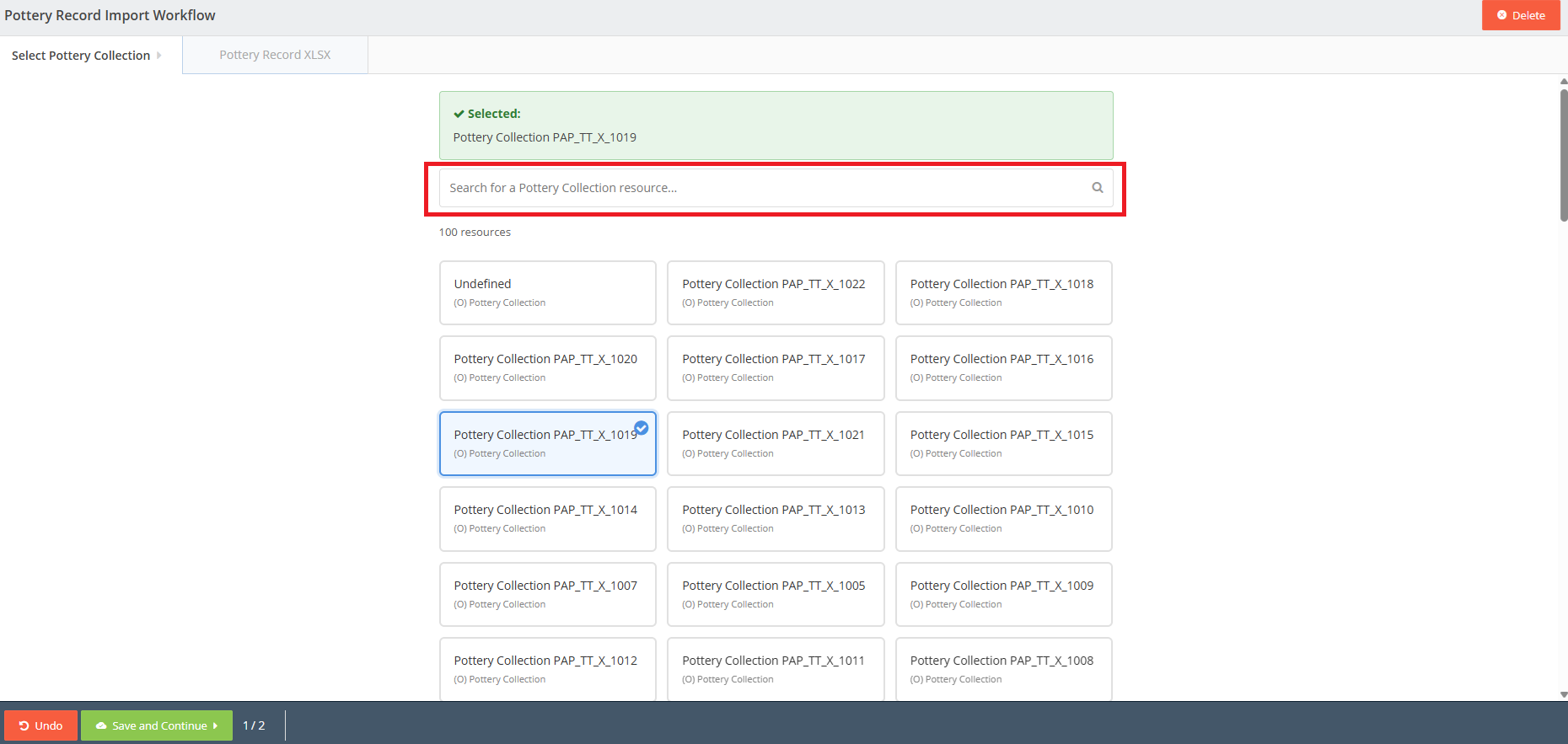
Step 1: Select Pottery Collection
The first step requires you to identify the specific Pottery Collection that these new records will belong to.
- Search for a Collection: Use the "Search for a Pottery Collection resource..." input bar at the top to filter the available records.
- Select a Collection: The matching collections will be displayed as clickable cards. Click on the card representing the correct collection.
- Confirm Selection: The selected card will highlight with a blue border to indicate it is active.
Show Screenshot Hint
Step 2: Pottery Record Import
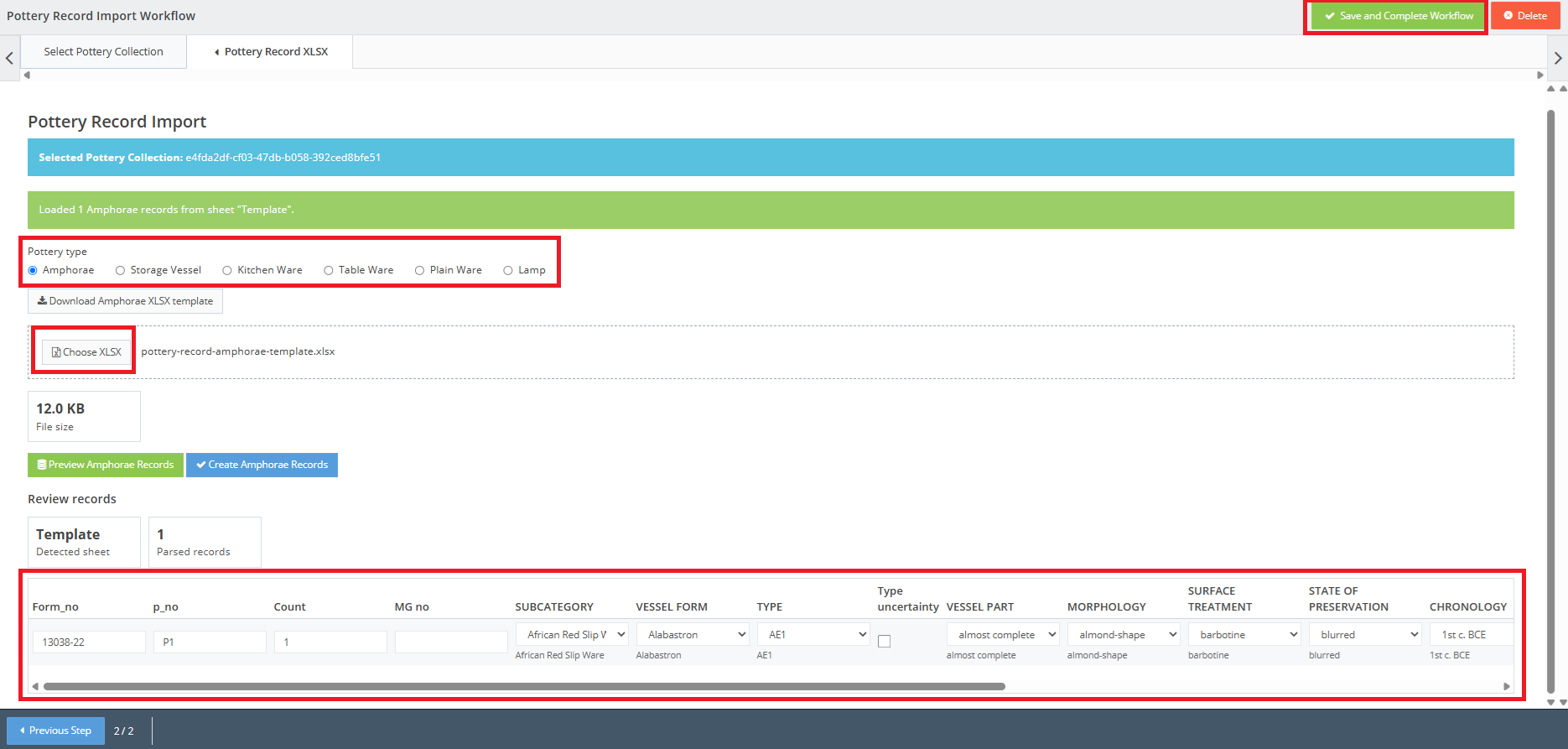
In this step, you will select the type of records you are importing, upload your Excel file, preview and map the data, and execute the final import.
- Verify Collection: At the top of the screen, a blue information box will display the Selected Pottery Collection ID.
- Select Record Type: Use the "Record type" dropdown menu to select the specific category of pottery being imported (Options include: Amphorae, Storage Vessel, Table Ware).
- Upload File: Click the "Choose XLSX" button to browse your computer and upload your Excel spreadsheet. (Note: Only .xlsx files are accepted).
- Preview Data: Once the file is selected, click the green button (e.g., "Prepare import data" / "Preview") to parse the spreadsheet.
- Review and Map Data: A "Review records" table will appear below, displaying the parsed data.
- Inline Editing: You can directly edit the values in this table before finalizing the import using the provided text boxes, checkboxes, and dropdowns.
- Missing Dictionary Values: If your spreadsheet contains terminology not recognized by the system, warnings will appear at the top of the screen. In the preview table, these unmapped fields will be highlighted with a red outline. Use the dropdown menus in these cells to map them to the correct system concepts.
- Commit Import: Once all data is correctly mapped and reviewed, click the blue button (e.g., "Commit Import" / "Save") to finalize the process.
- Success: A green success message will appear, and the preview table will update to show links allowing you to "Open" the newly created individual pottery records.
Show Screenshot Hint