Account Management
This section provides information on logging in to the Recogito Studio MN account, resetting an account password, changing profile settings, inviting new users and managing users and their priviledges.
Login to Recogito Studio
-
Visit the
recogito.mn.cenagis.edu.plwebsite or click here. -
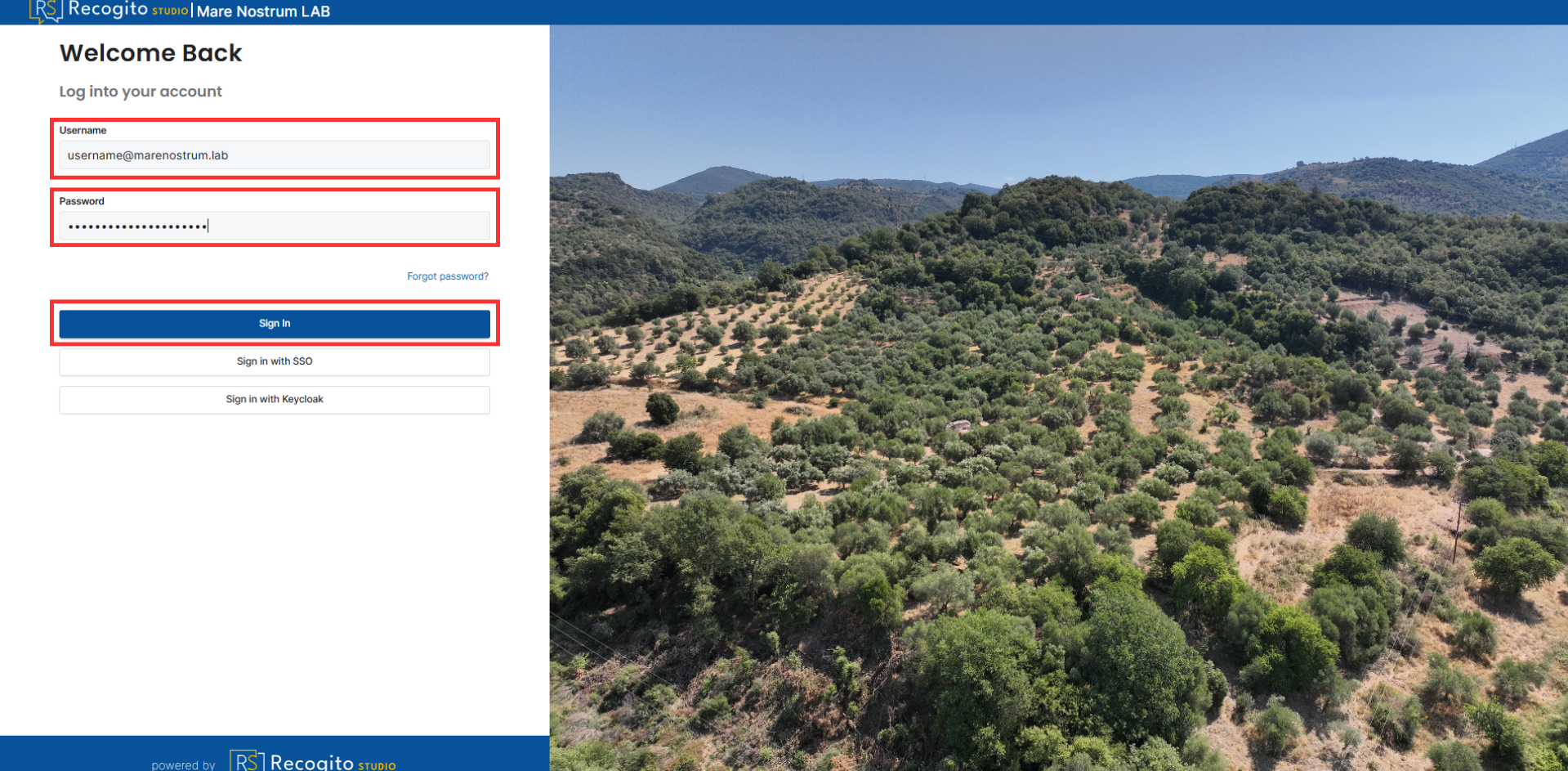
Provide your Username and Password, then click the "Sign In" button.
Reset an Account Password
Password reset
To reset a password to the Recogito Studio MN, you must have logged in to the platform at least once and already have an existing account.
-
Visit the
recogito.mn.cenagis.edu.plwebsite or click here. -
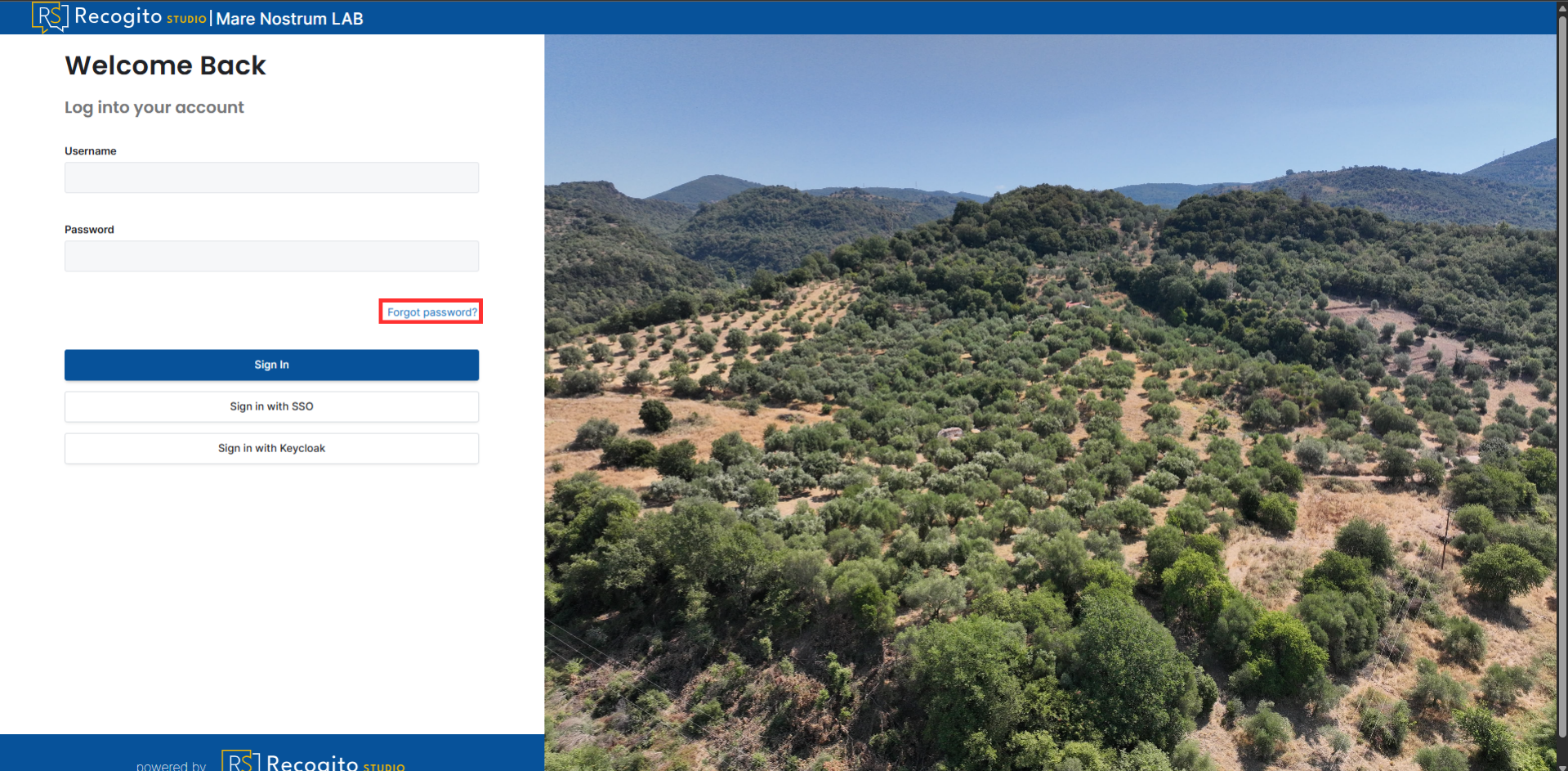
Click the "Forgot password?" option.
-
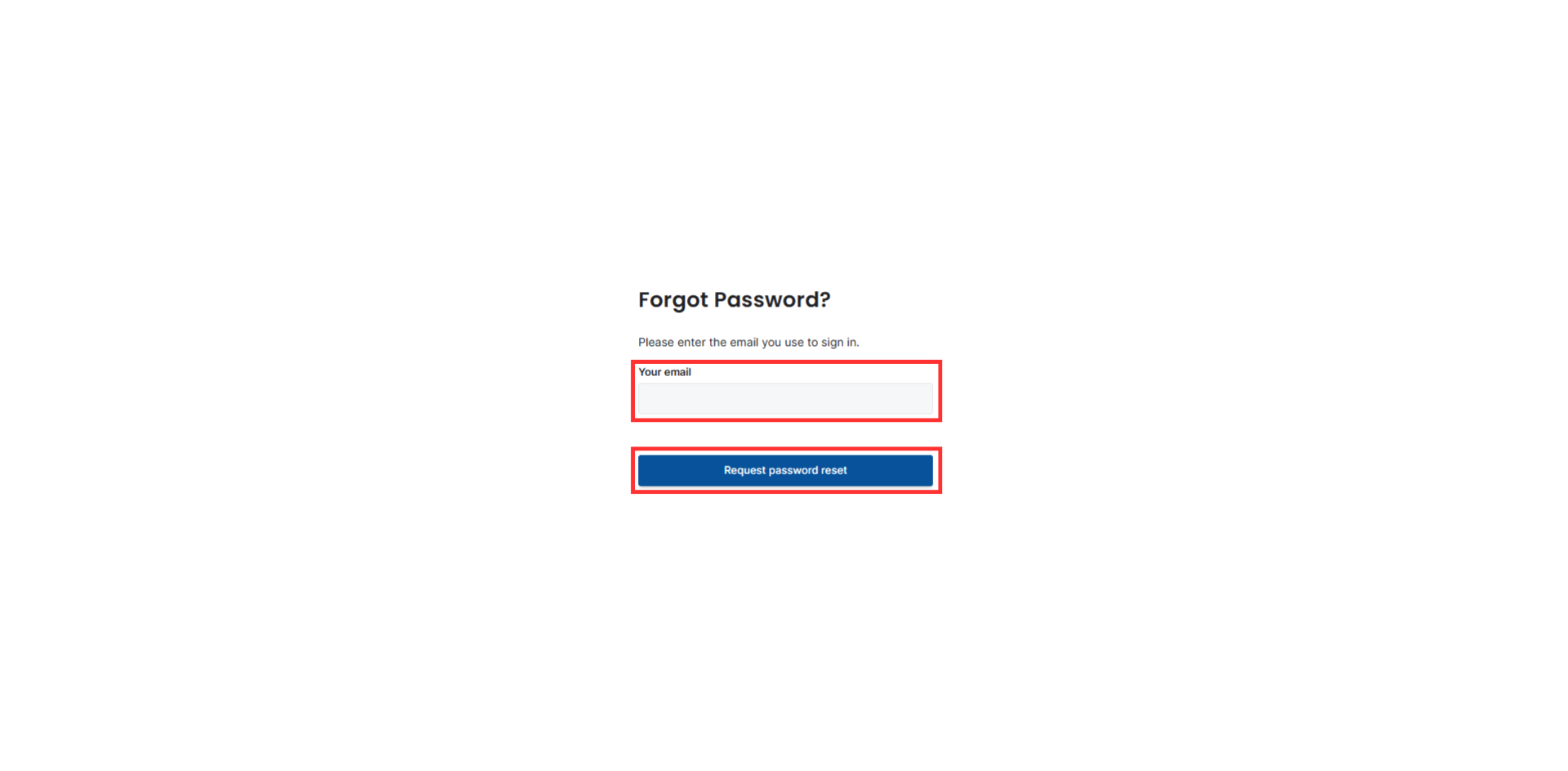
Provide your email address and submit the reset request.
-
Wait for the email and follow the instructions provided.
Check spam folder
If you do not receive the email, check your spam folder. If there is no message, contact the page administrators.
Change Profile Settings
-
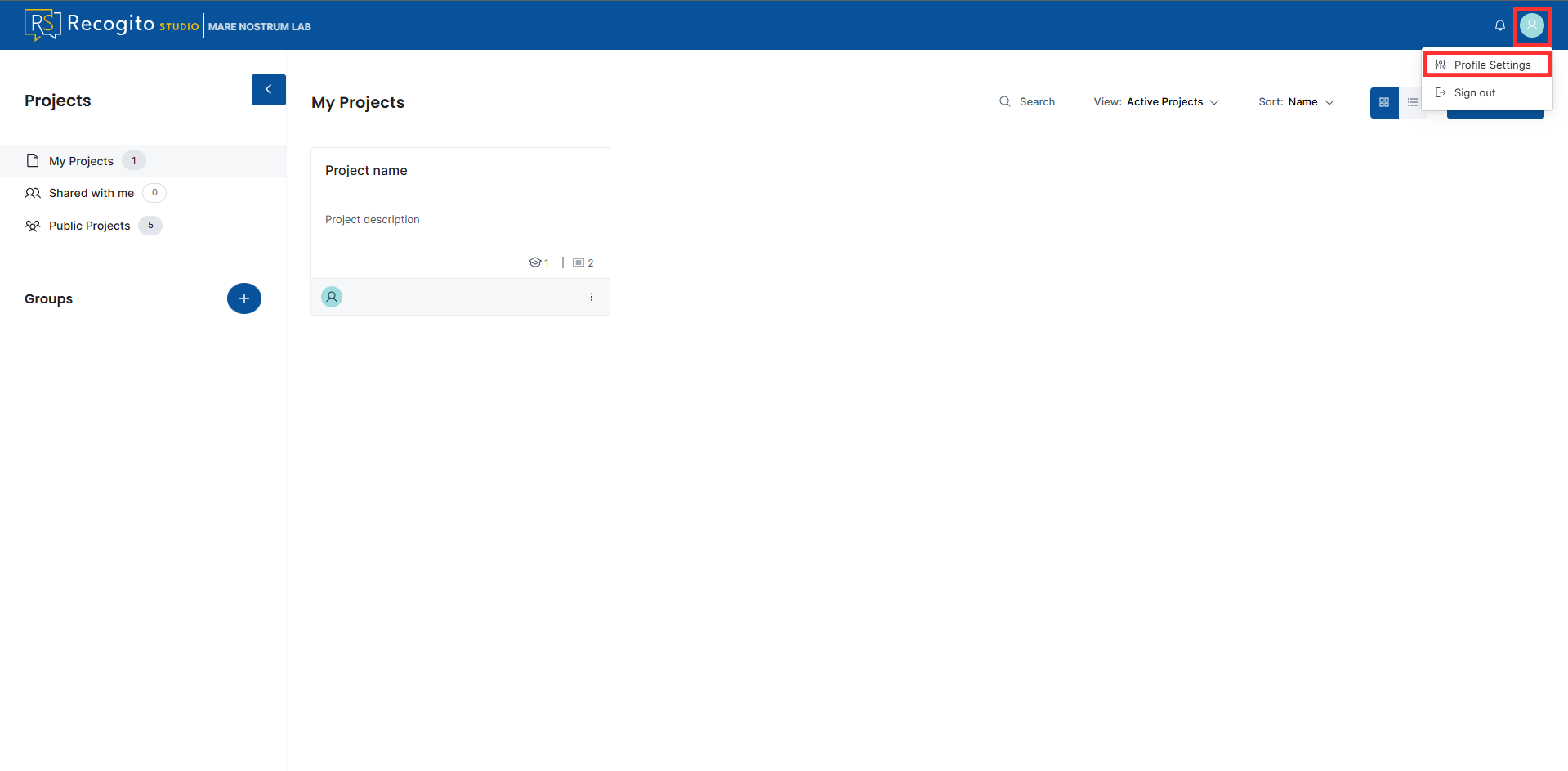
Click on your profile icon.
-
Click "Profile Settings" option.
-
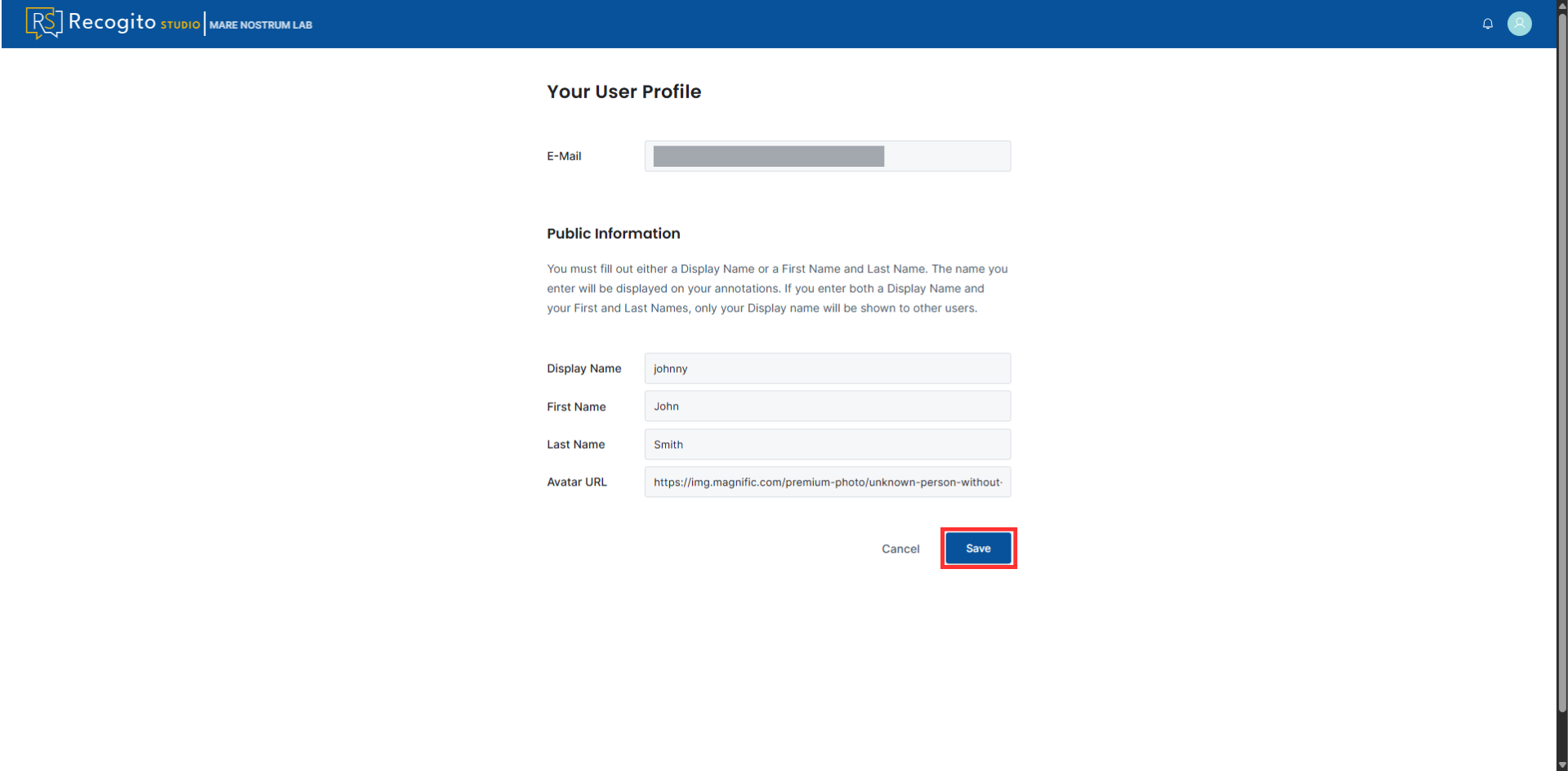
Provide personal data. For the avatar URL, paste a Web link to the image.
Note
It is suggested that the link ends with an image format suffix (e.g., .jpg, .png).
Inviting New Users
User priviledges
To invite new users, you need to have Admin organization role.
-
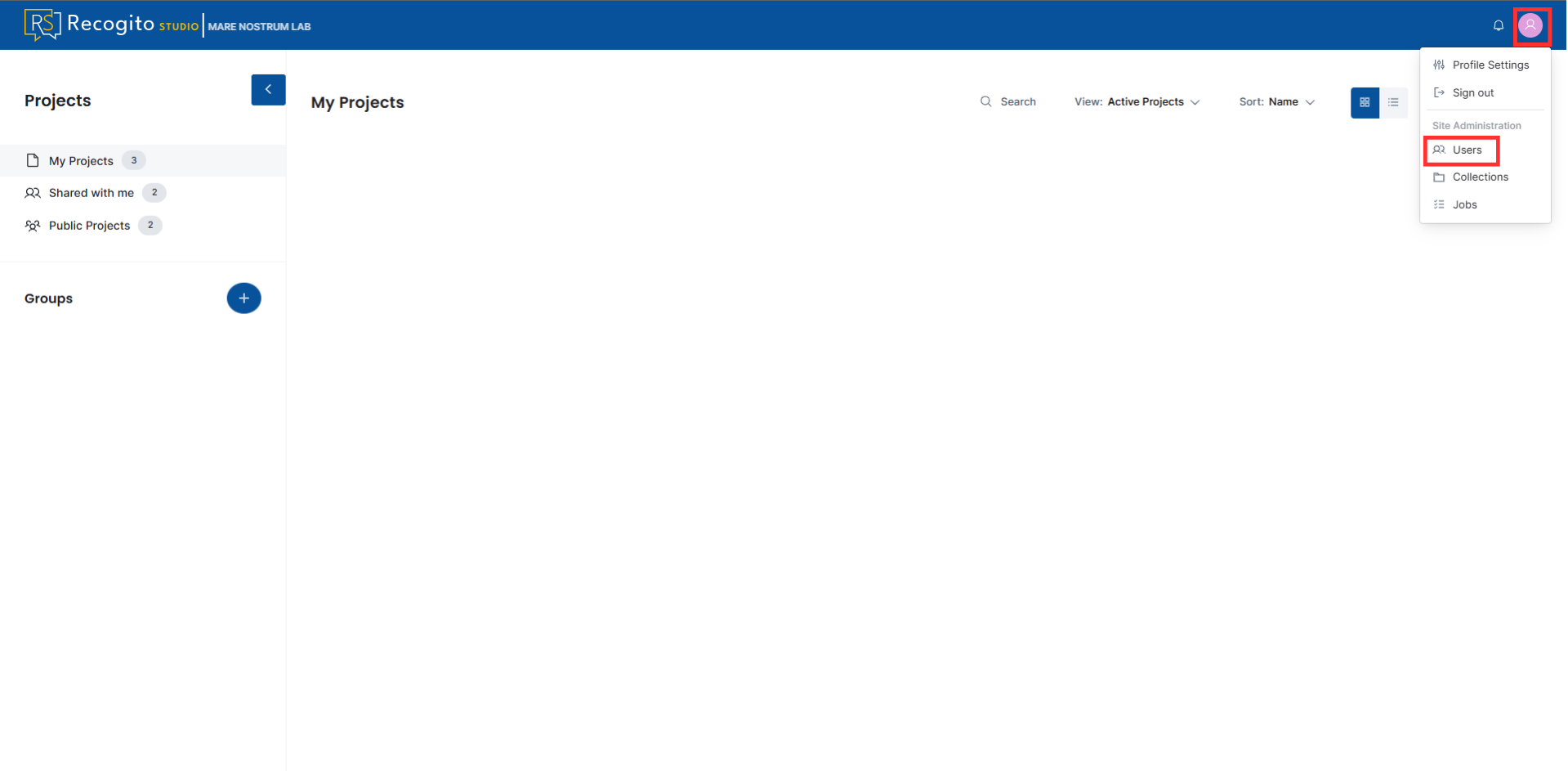
Click on your profile and go to the "Users" section.
-
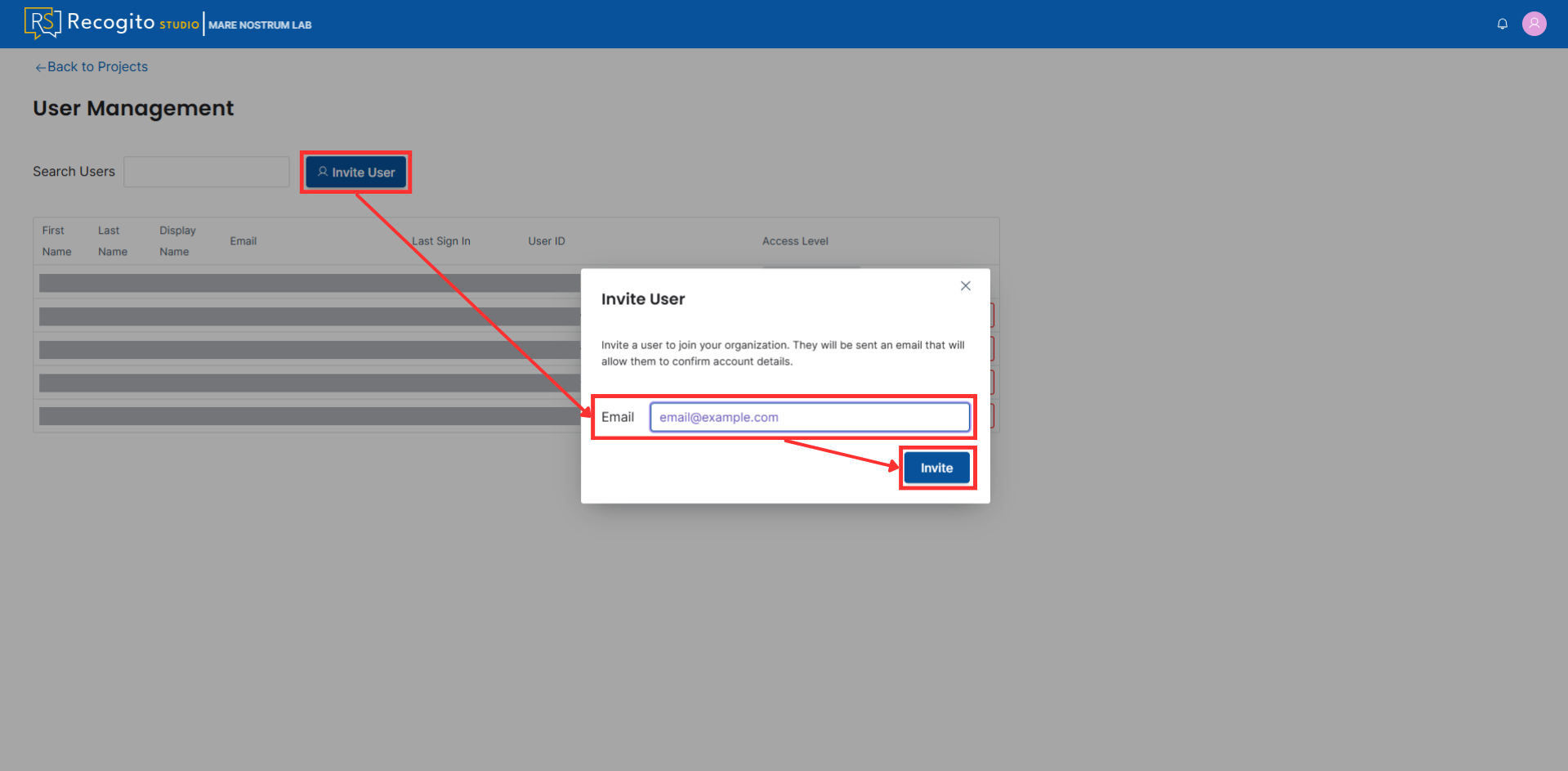
Press the "Invite User" button, provide the email you want to invite to the organization, and send the invitation.
-
Further information for the invited user is provided in the invitation email.
Managing Users and Their Priviledges
User priviledges
To manage users, you need to have Admin organization role.
-
Click on your profile and go to the "Users" section.
-
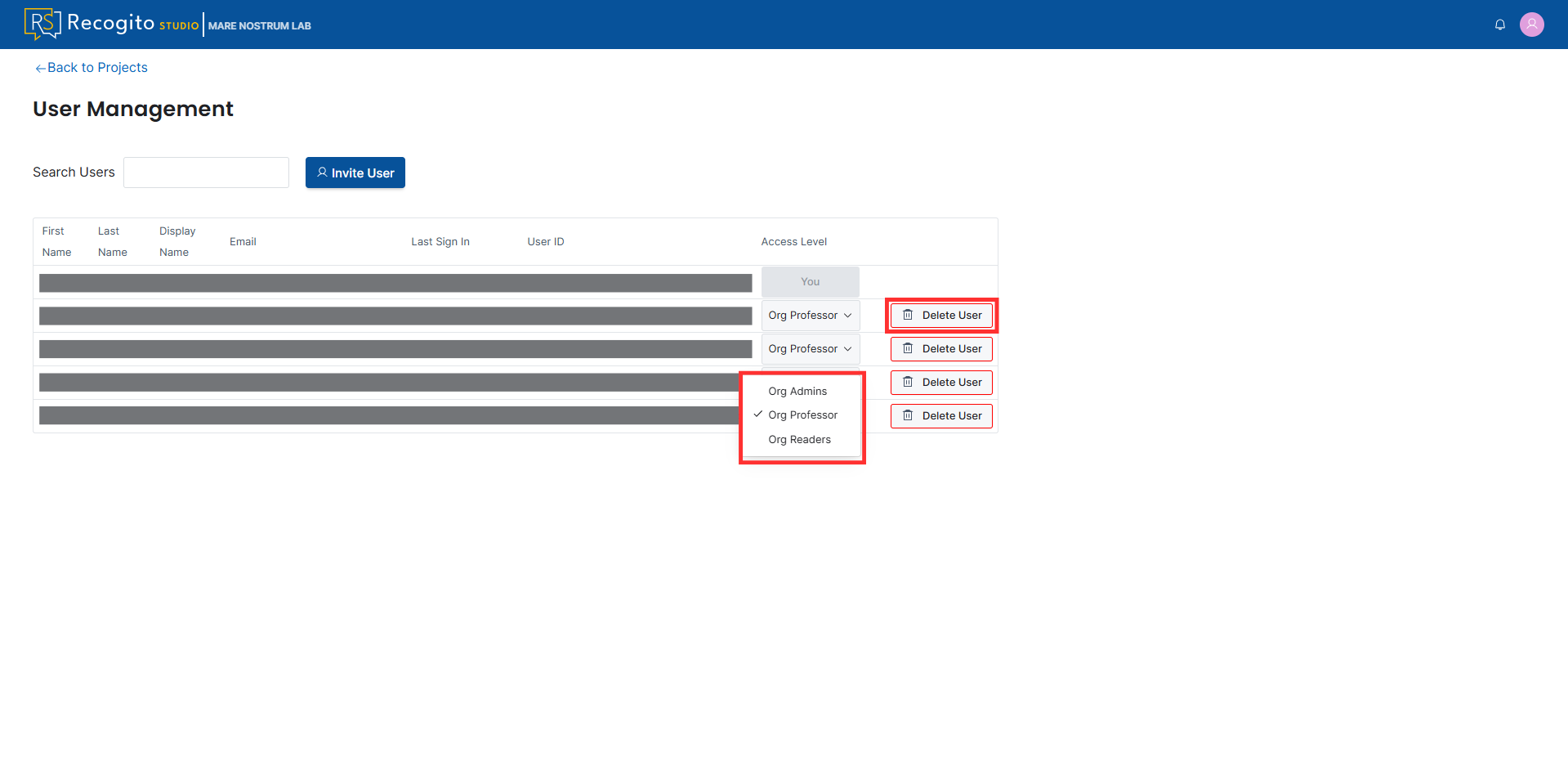
Here, you can inspect information about users, such as First, Last and Display Name, Email, Last Sign In, and User ID. Moreover, you can delete users from the organization and change their Access Level.