Creating a New Record in the Thesaurus - Cradle
Cradle is a form-based tool for adding new items to the Mare Nostrum LAB thesaurus dictionaries. Use it when you need to create a record in a specific dictionary (e.g., vessel part, provenance, etc.).
Opening Cradle from the Main Page
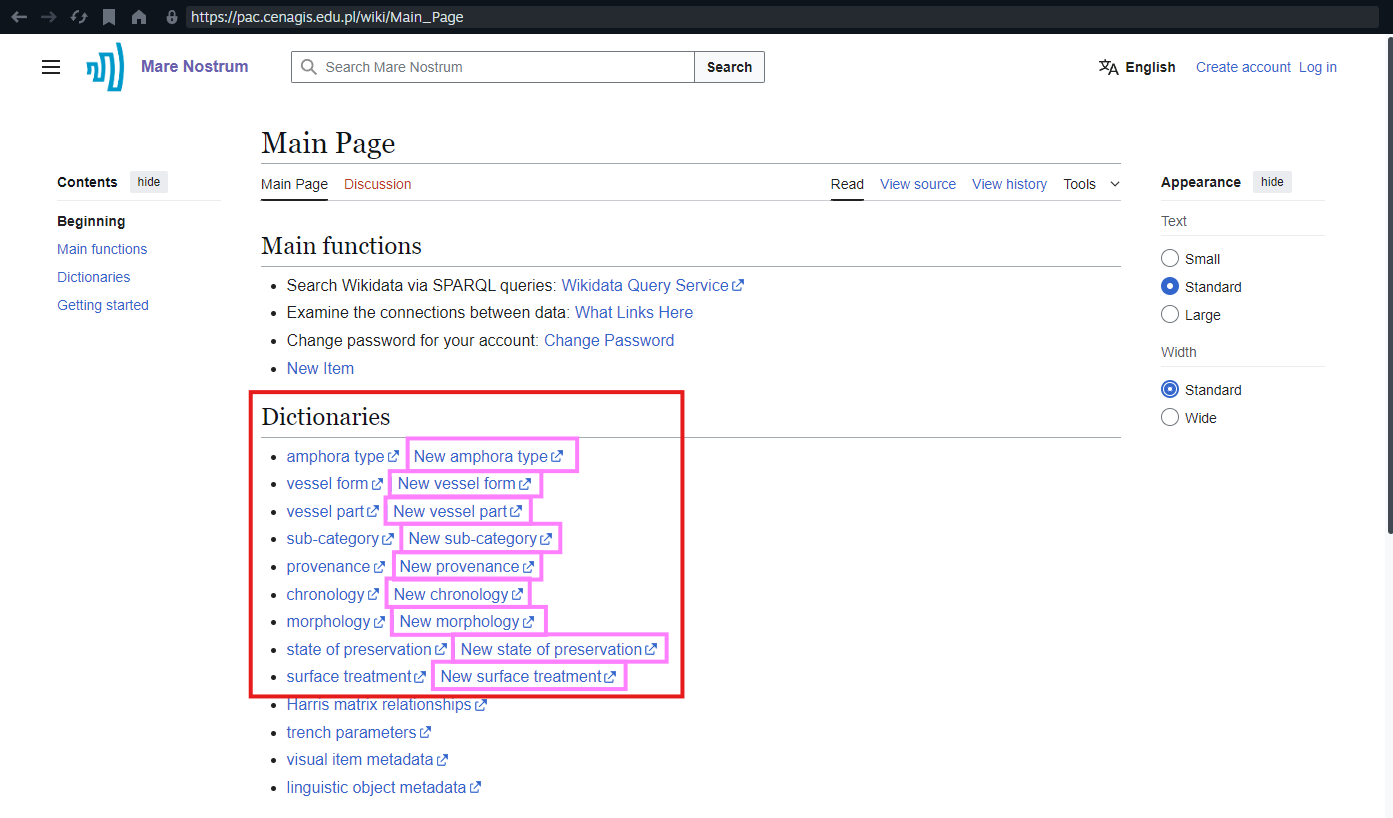
- Go to the Thesaurus Main Page.
-
In the Dictionaries section, select a New [dictionary name] link (for example, New amphora type, New vessel part, etc.).
Logging In and Authorizing the Tool
Cradle can only save new items after you log in and grant it permission to edit the Thesaurus.
-
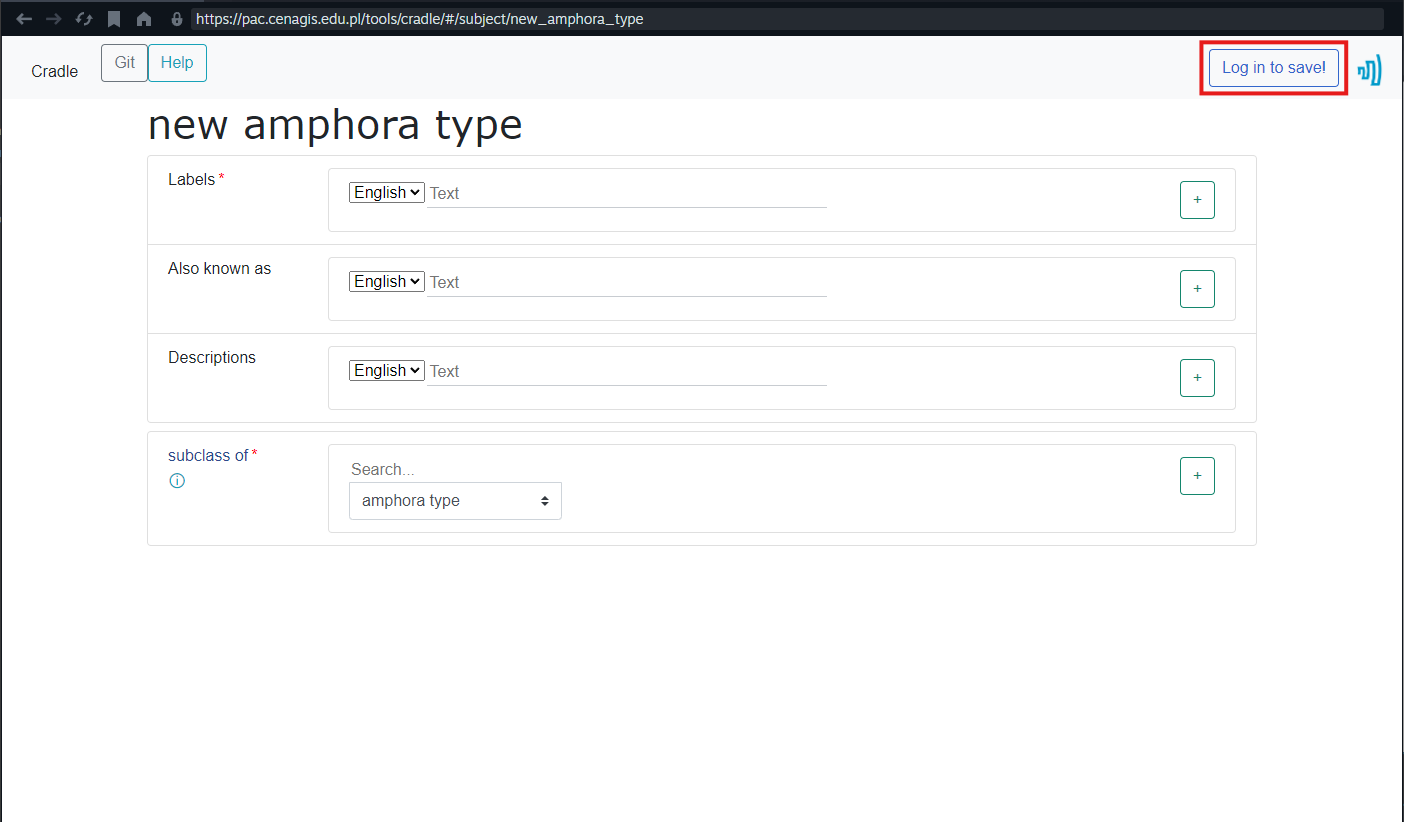
On the form page, click Log in to save! in the top-right corner.
-
Sign in with your Mare Nostrum LAB thesaurus account.
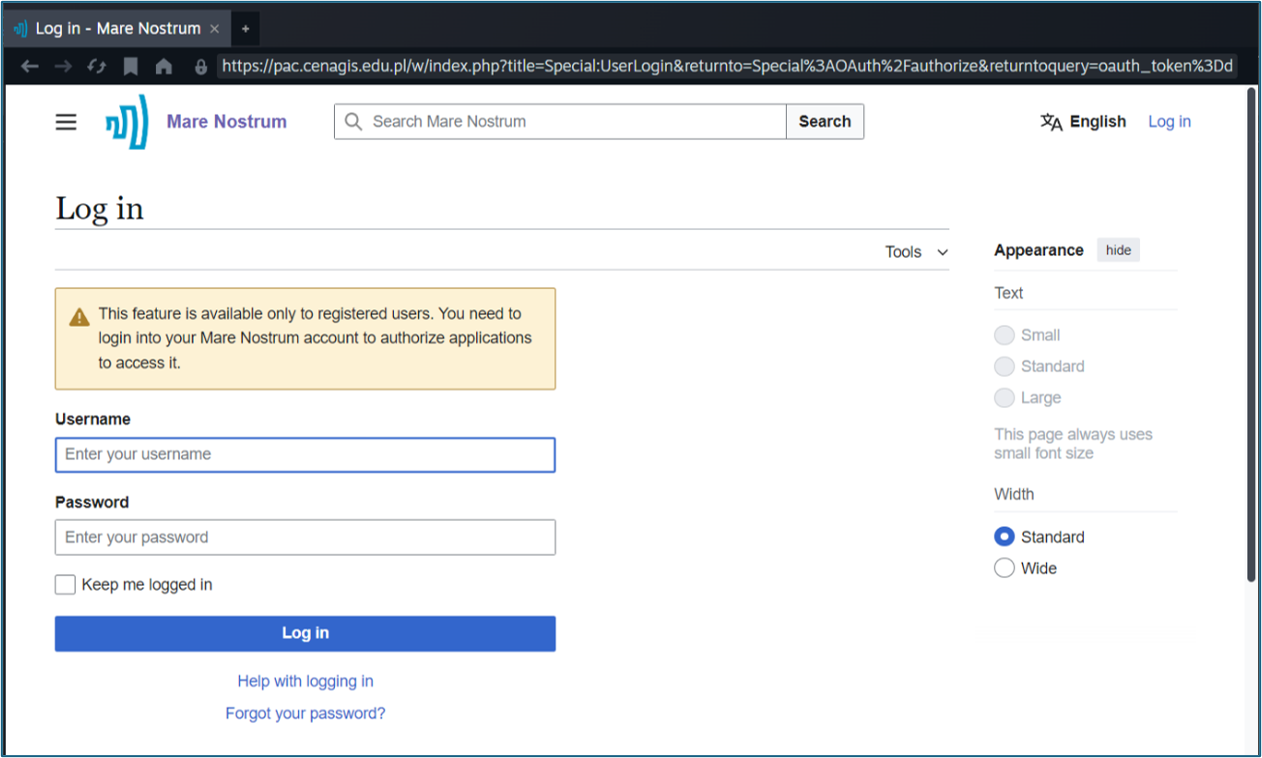
Account required
If you are already logged in, you will not see the login page. If you do not have an account yet, follow the steps in Account Management.
-
On the authorization page, click Allow to permit Cradle to make changes on your behalf.
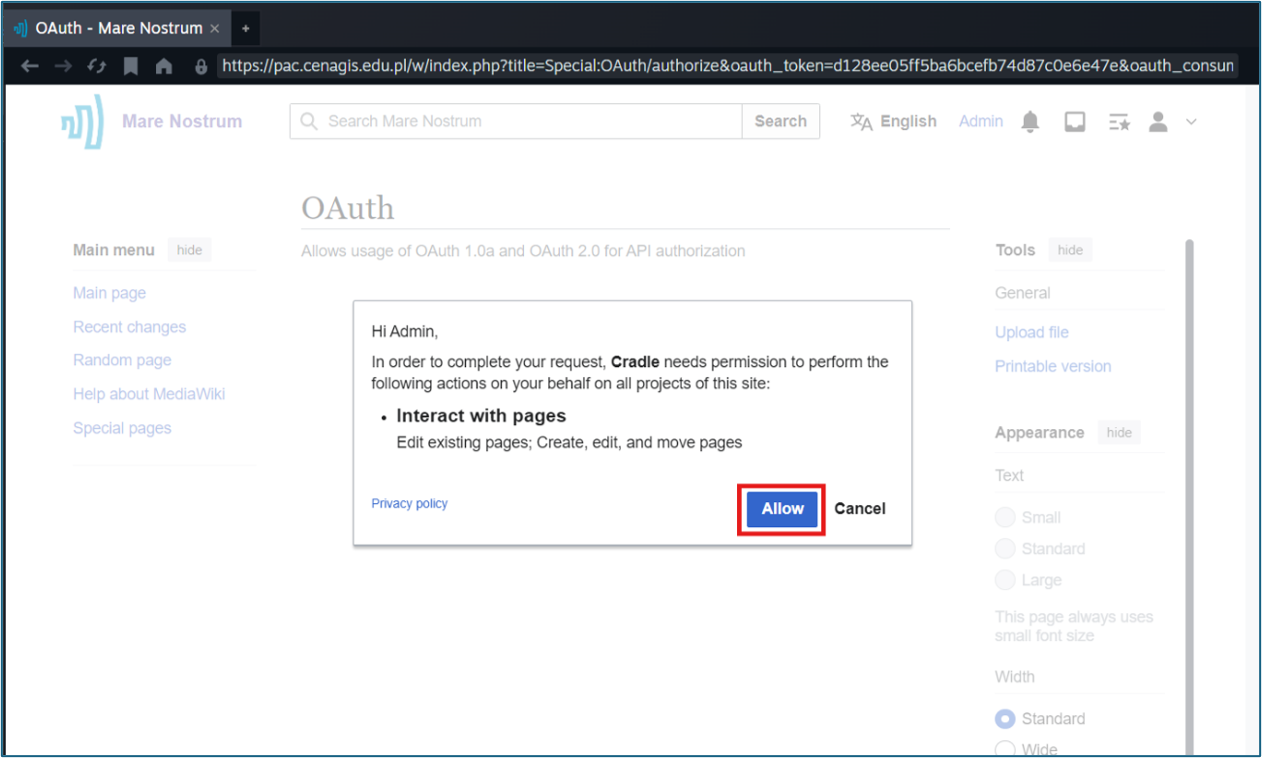
After a successful authorization, the form for the selected dictionary becomes ready to fill in.
Form Layout
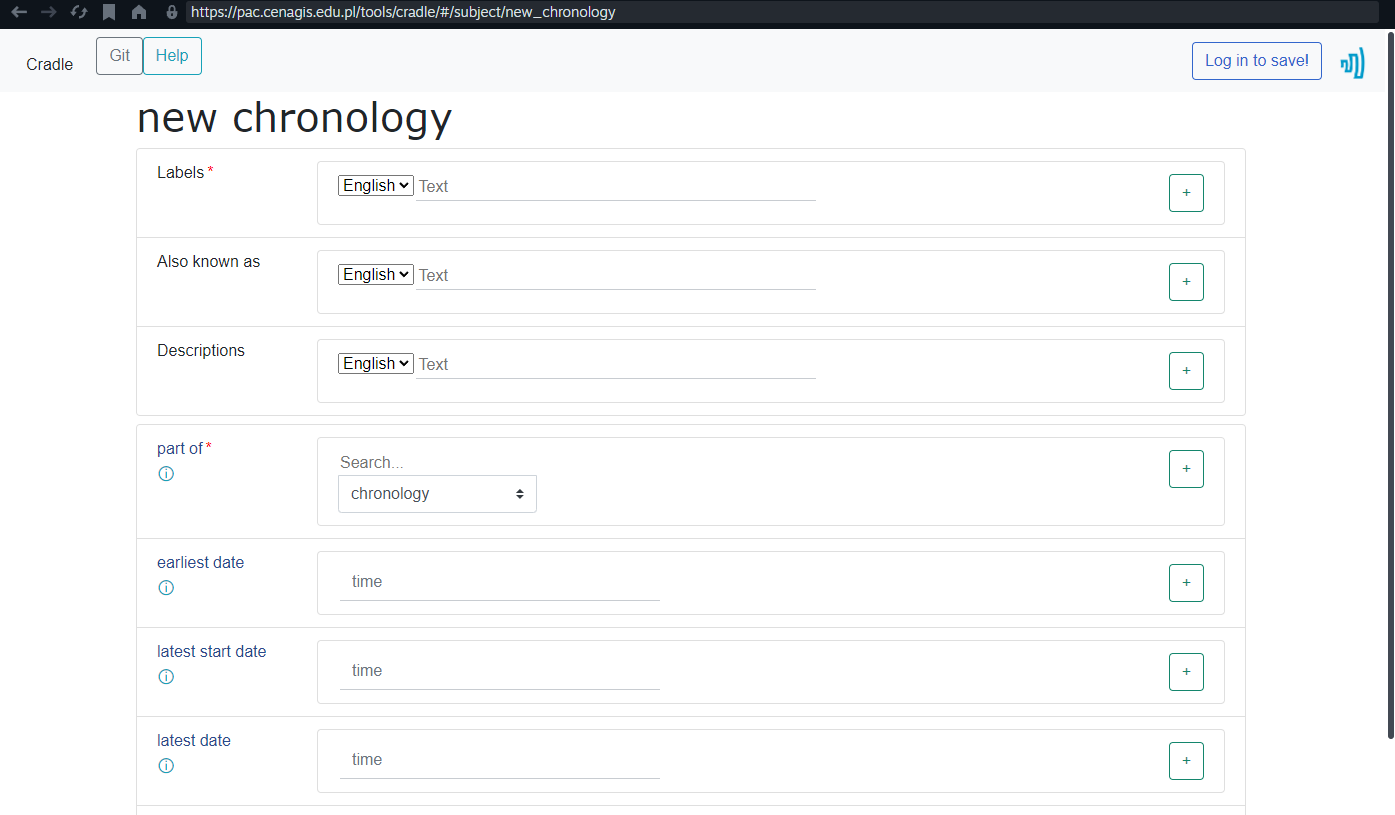
Each Cradle form has the same core structure. Required fields are marked with a red asterisk (*).
- Labels (required) - the name of the new item in the selected language.
- Also known as (optional) - alternative names (aliases) in the selected language.
- Descriptions (recommended) - a short description in the selected language that distinguishes the item from similar ones.
- Subclass of/Part of (required) - the parent item that places the new record in the dictionary hierarchy.
- Additional properties - dictionary-specific fields. Whether they are required depends on the particular dictionary.
Important interface elements:
- Language selector - a dropdown before each text field in Labels, Also known as, and Descriptions. Choose the appropriate language for the label, description, or alias you are entering.
- Add (+) and remove (-) buttons - visible after each text field. Click
+to add another entry in a different language (pick the language in the dropdown first); click−to remove an extra language entry. - Hover over the
ⓘicon next to a property to see its definition. - Click the Mare Nostrum logo in the top-right corner to return to the Main Page.
Language
Enter the primary label in English. To add labels, descriptions, or aliases in other languages, use the language selector and the + button next to the relevant field.
Available languages: English (EN), Polish (PL), Greek (EL), German (DE), French (FR).
Example form showing described above elements and its dictionary-specific fields
Filling In and Submitting the Form
- Complete all required fields (marked with a red asterisk).
- Fill in optional fields as needed for the dictionary you are editing.
-
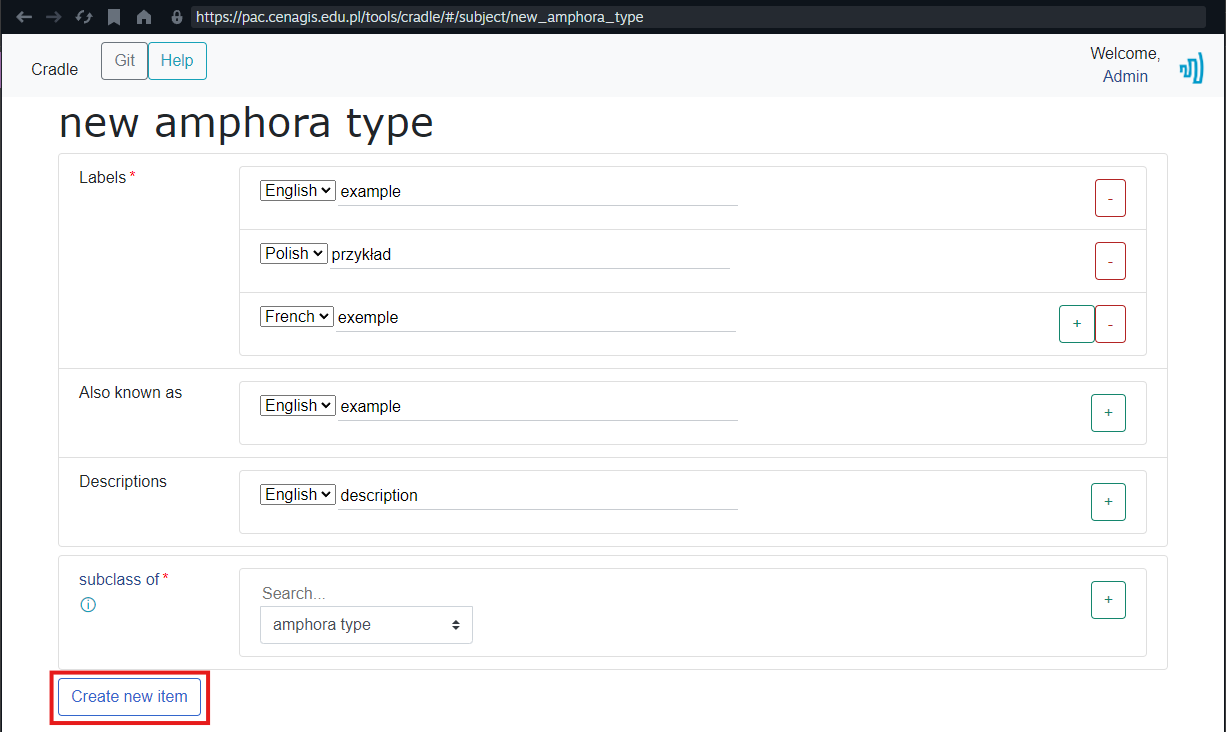
When the required fields are complete, the Create new item button appears at the bottom of the form.
Button not visible?
If required fields are filled, but Create new item still does not appear, click anywhere outside the currently focused field to refresh the form state.
-
Click Create new item.
- Wait while the page shows Creating item...
-
When creation succeeds, the Last items created section appears with a link to the new item.
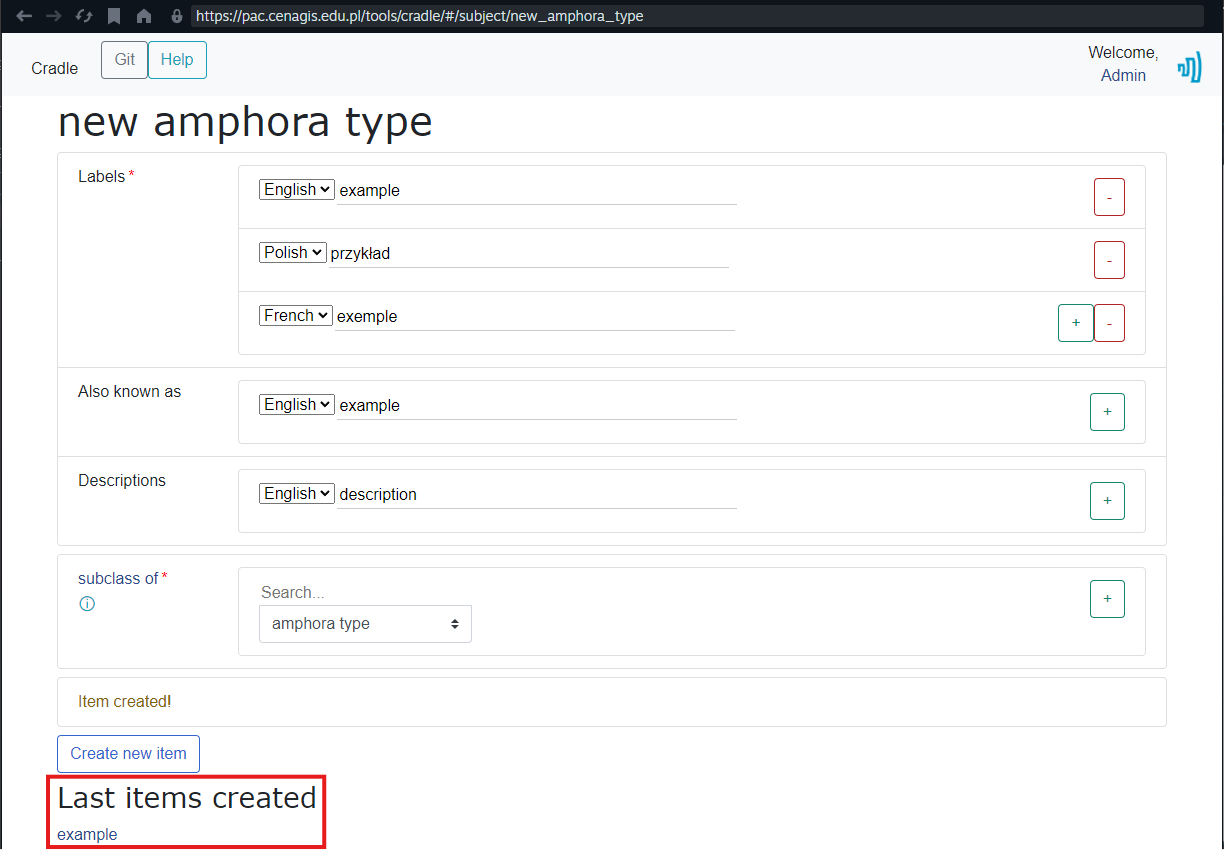
Open the link to review the new record and, if needed, continue editing it on the item page.
Creating a Subtype of an Existing Item
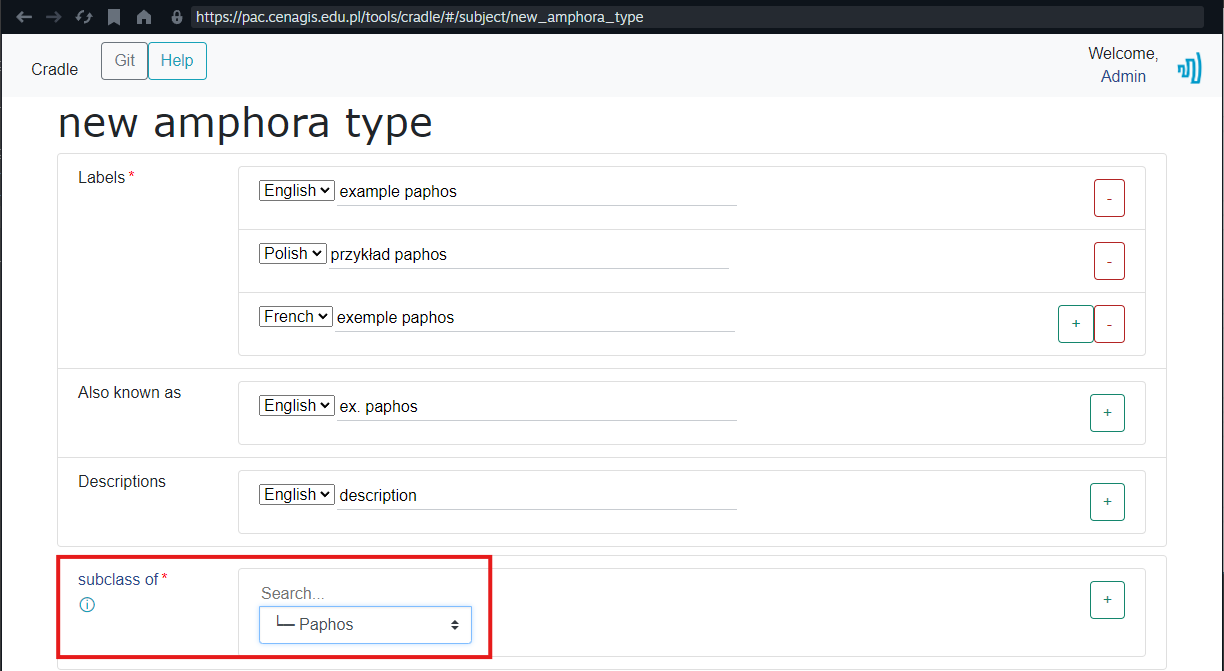
By default, the subclass of/part of field points to the main parent of the dictionary. You can instead choose the new item under another existing dictionary entry.
For example: add example paphos as a subtype of paphos, rather than directly under amphora type.
- Open the Cradle form for the target dictionary.
- In the subclass of/part of field, replace the default parent with the existing item that should be the direct parent.
-
Complete the remaining required fields and click Create new item.