Thesaurus Management Documentation
To access the code repository visit Mare Nostrum LAB GitLab.
Quick Start
Browsing Thesaurus
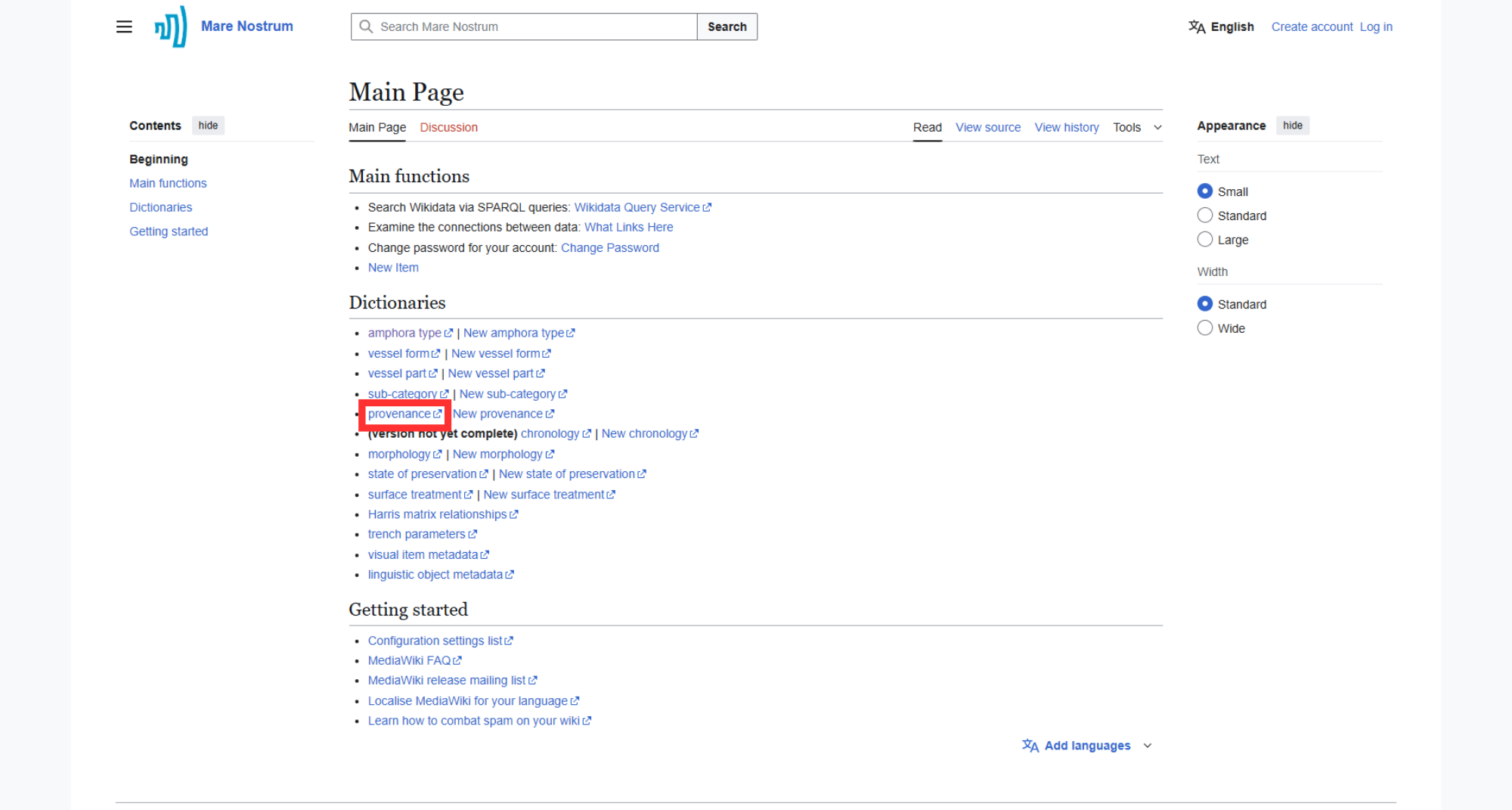
- Go to the Thesaurus main page.
-
Click on the desired dictionary (e.g., Provenance).
-
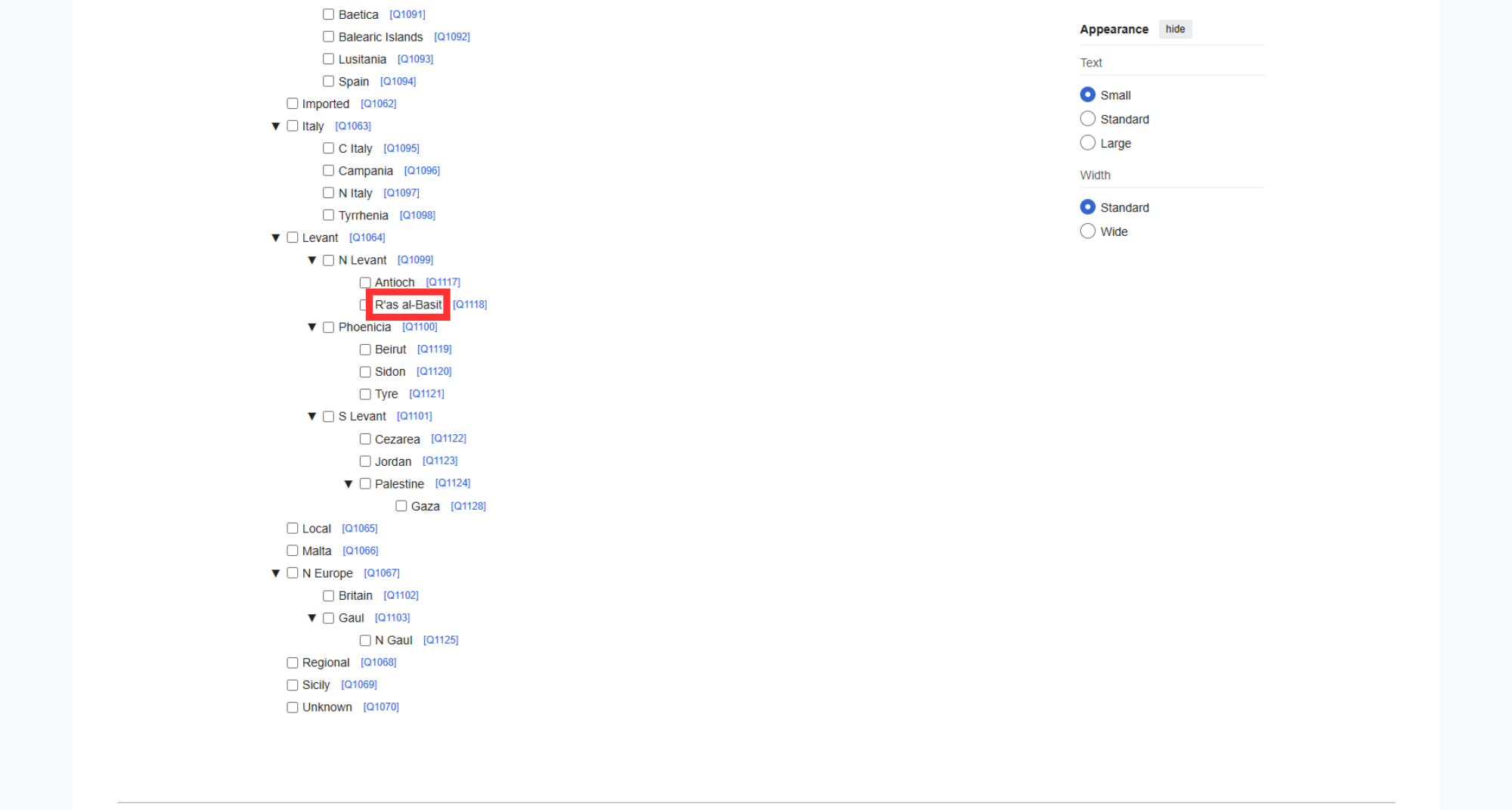
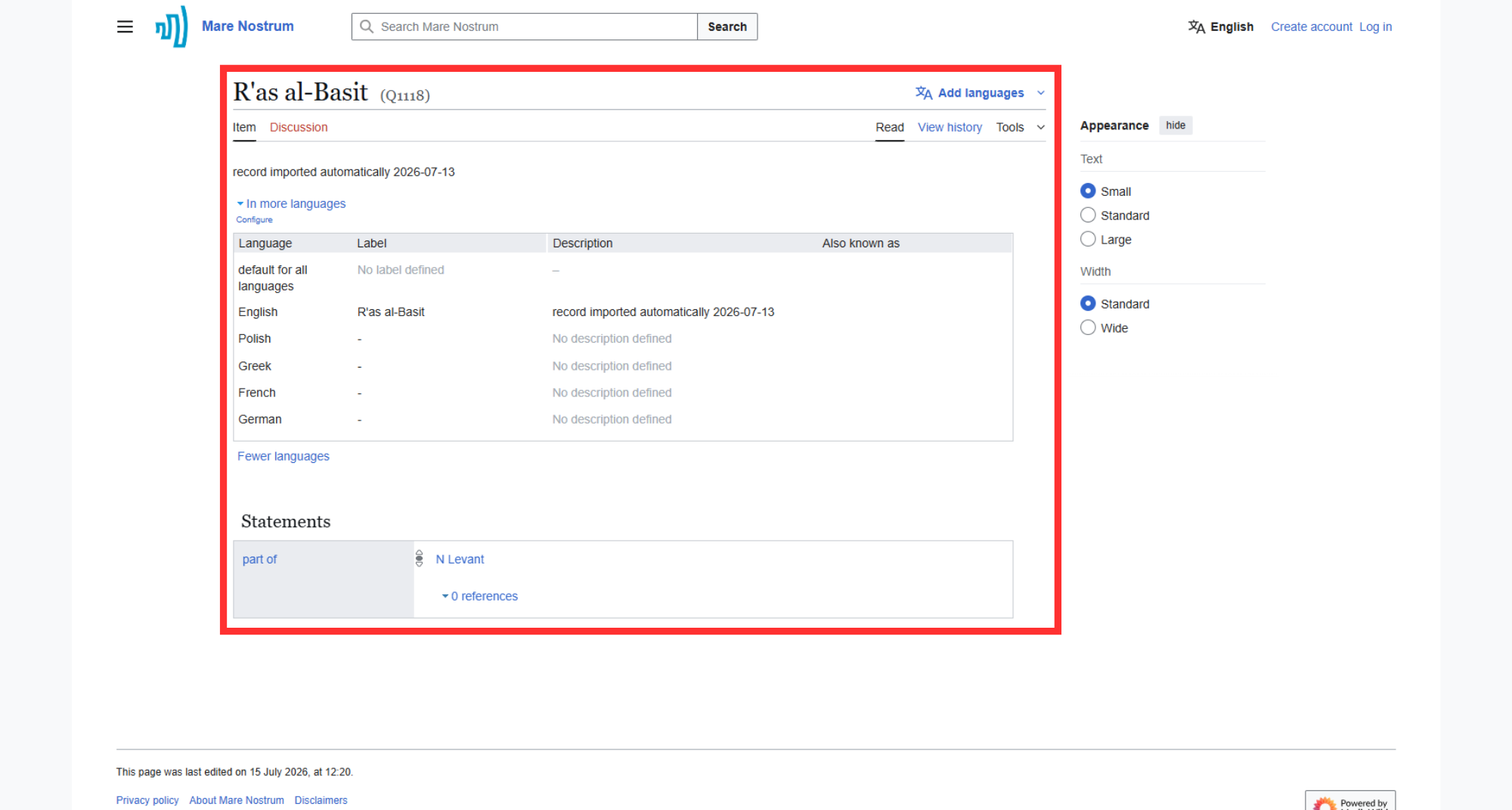
Navigate to the record of interest (e.g., R'as al-Basit).
Note
At this point, you can inspect relations between available items.
-
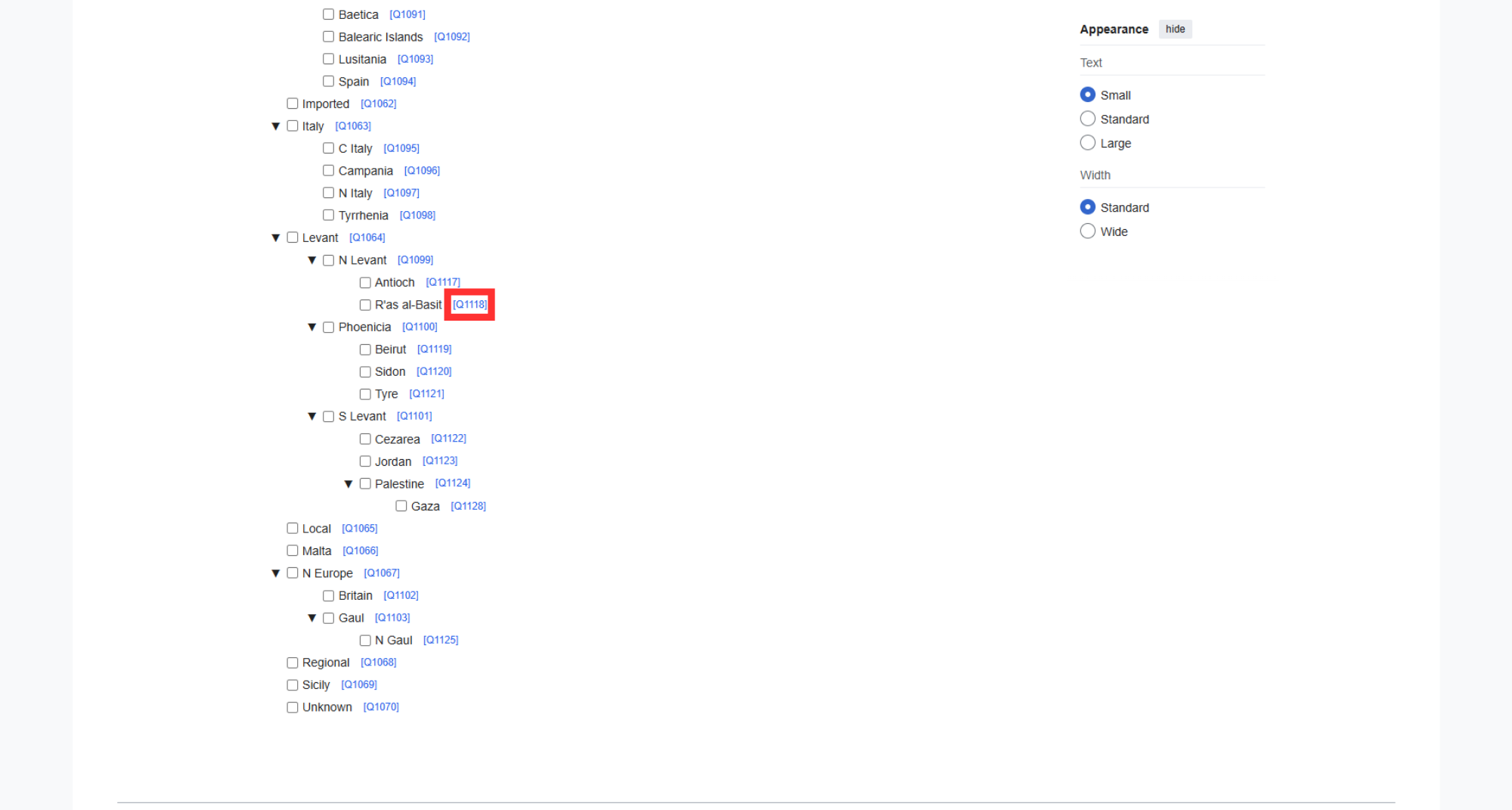
Inspect a record of interest by clicking on the internal blue identifier of a subject.
-
After clicking, Thesaurus opens the site associated with the selected record.
Editing Contents
- Browse Thesaurus to find the desired subject.
-
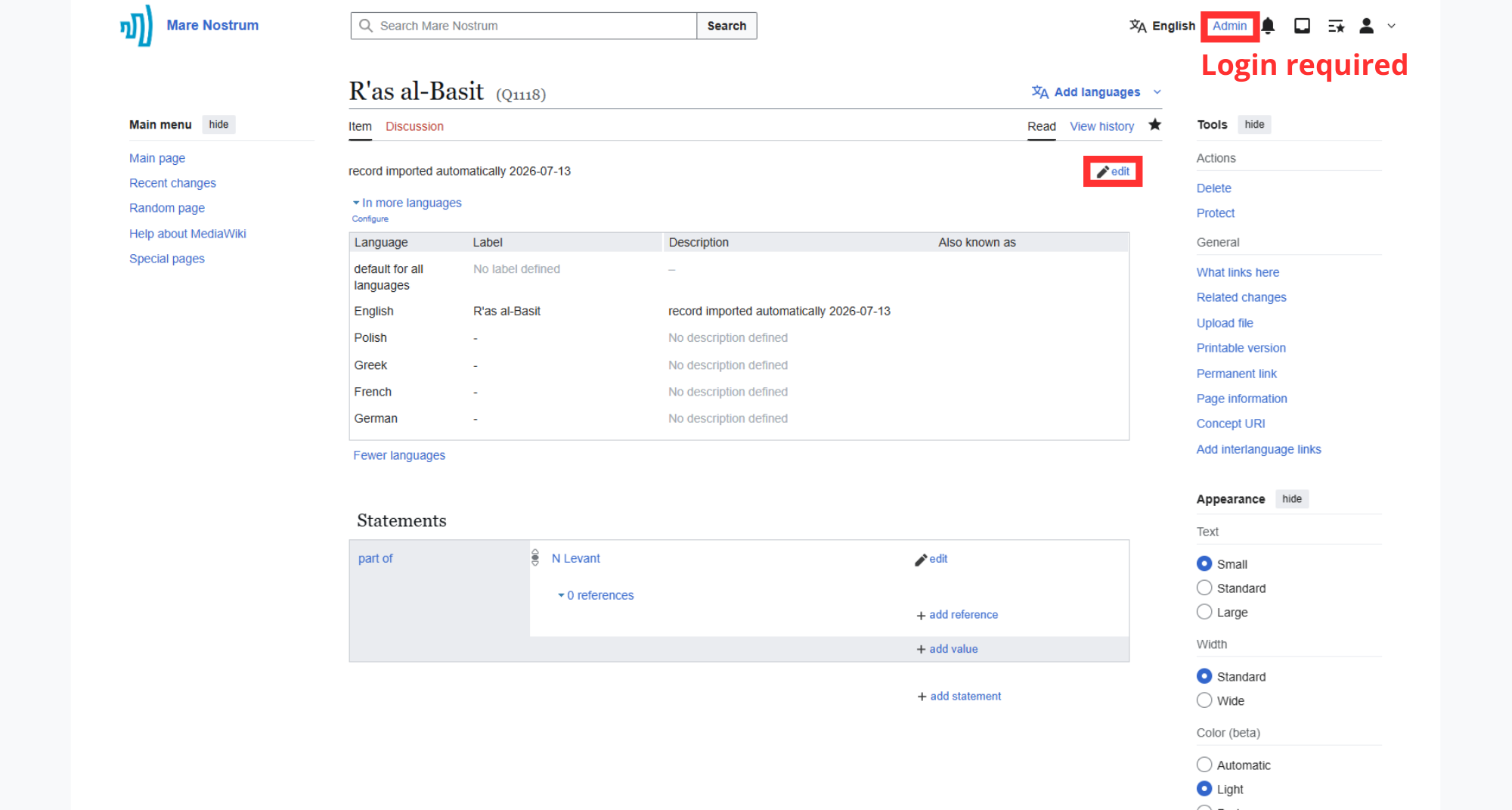
Click on the "edit" button with pencil icon.
Login before editing
Editing contents requires prior logging in. Further instructions here.
-
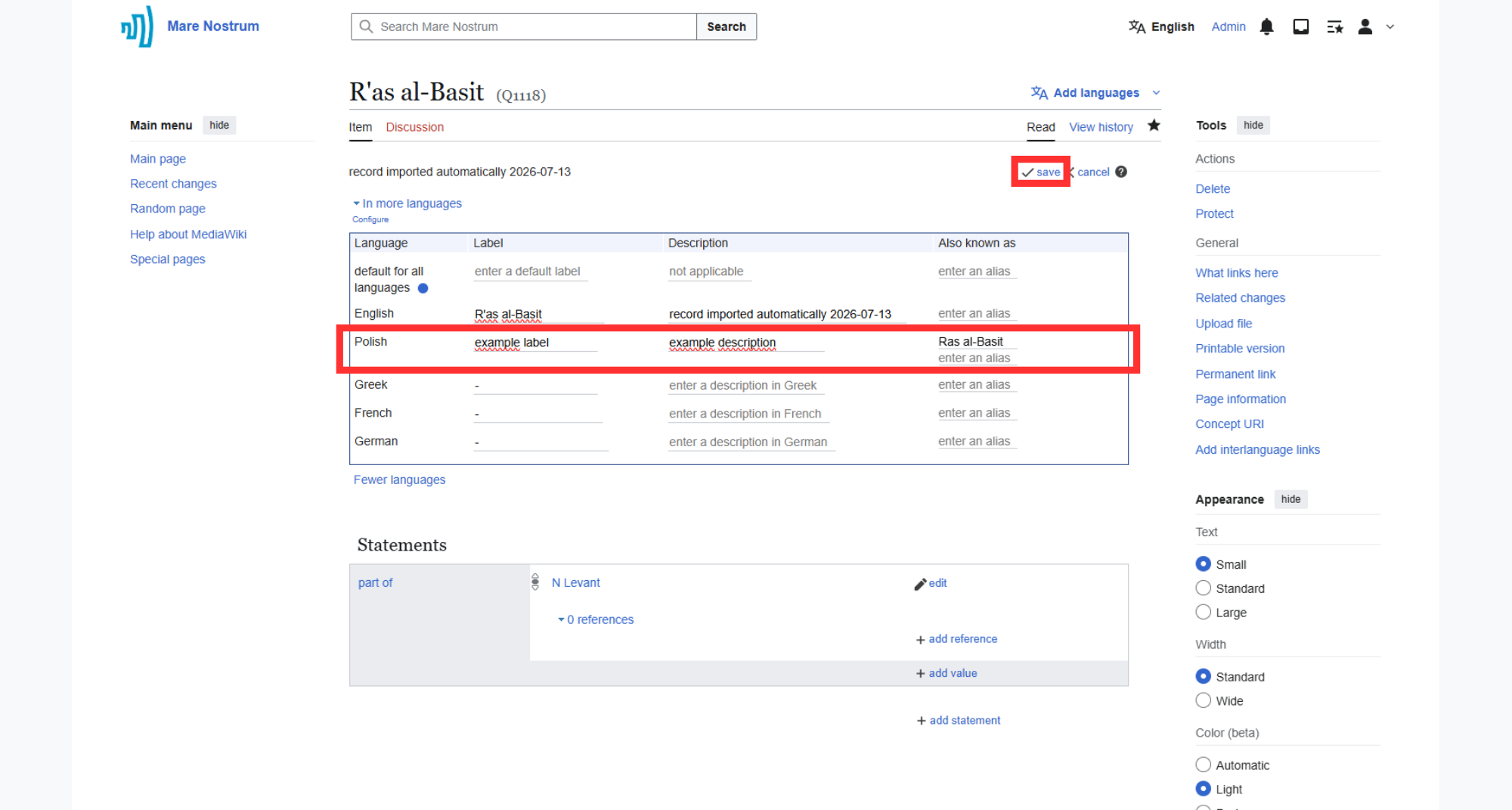
Modify contents and click "save" after completing the change.
-
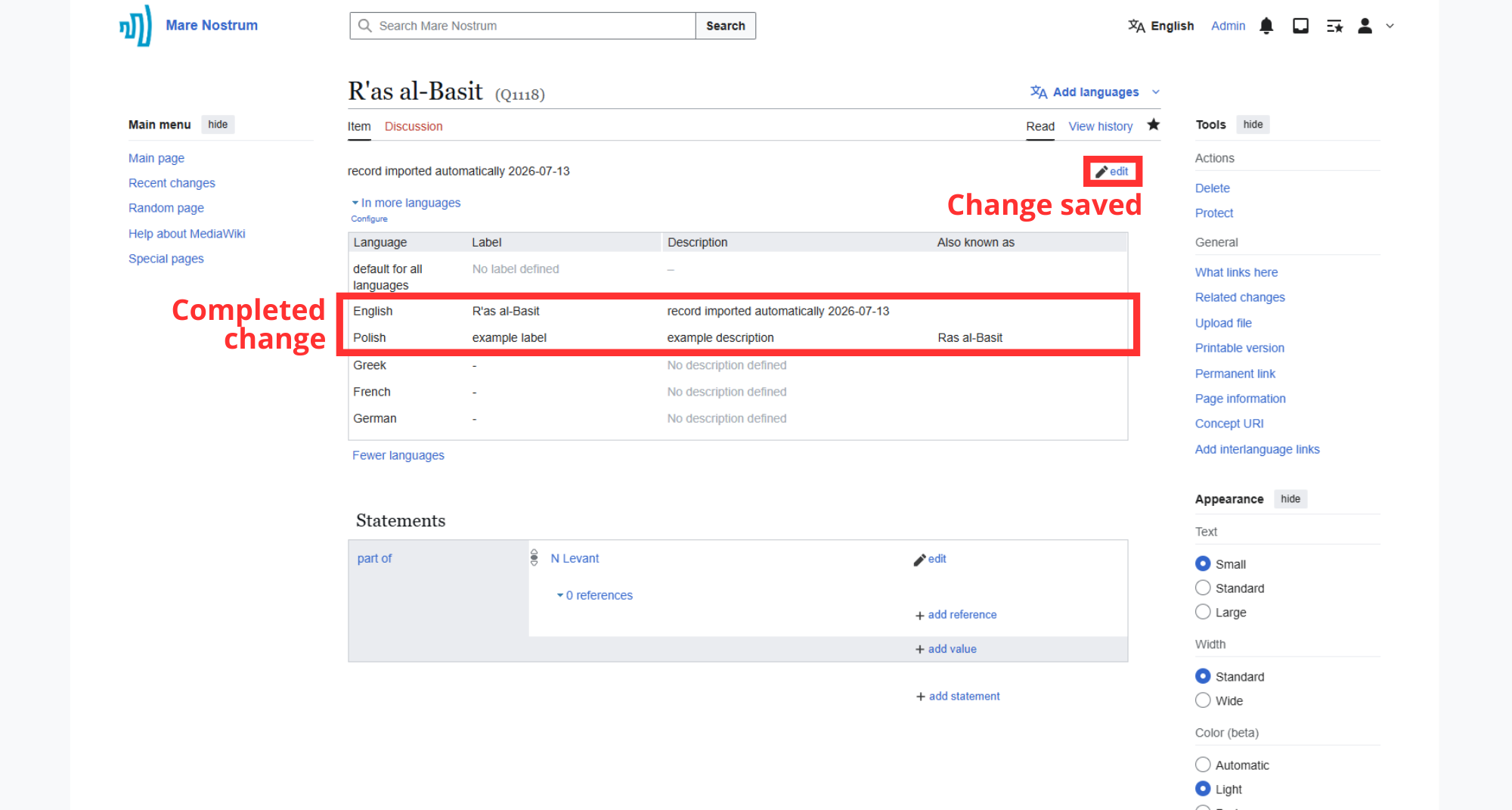
Wait for changes to be saved which is indicated by the reappearance of the "edit" button.
Modifiable elements and non-modifiable elements
You can modify:
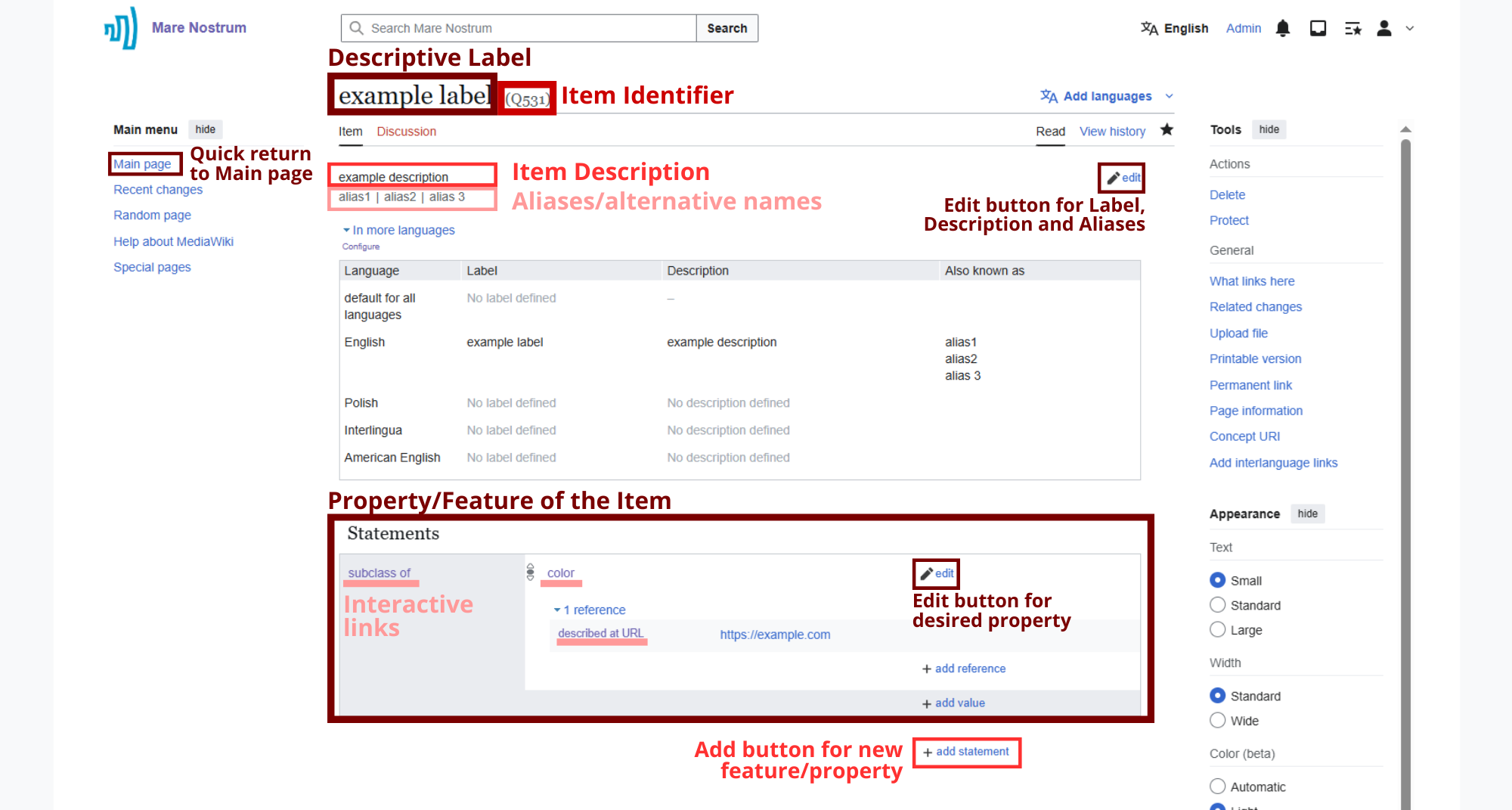
- Descriptive Label
- Item Description
- Aliases/alternative names
-
Labels, Descriptions and Aliases in different languages
(available: English (EN), Polish (PL), Greek (EL), German (DE), French (FR))
-
- To modify content of existing property use second ""edit" button with pencil icon.
- To add new property, select "add statements" with plus icon, choose desired property.
You cannot modify:
- Item Identifier (Q followed by a number).
Adding New Content
-
Selecting the Target Dictionary
On the "Main page" in the "Dictionaries" section, there are New [dictionary name] links for creating a new item for each dictionary.
-
Login and Tool Authorization
The tool requires authorization, which is initiated via the "Log in to save!" button in the top right corner of the form.
Note
You will be redirected to the Mare Nostrum Wiki login page, and then to the OAuth page, where authorization is granted by clicking the "Allow" button at the bottom of the message.
Note
OAuth authorization requires prior login.
-
Filling in Data
-
Labels (required) – the name of the item being added in English
-
Also known as – alternative names for the item
-
Descriptions – a short description of the item to distinguish it from others
-
Subclass of/Part of – the parent element for the item being added
-
-
Saving
Once filled out correctly, the "Create new item" button will appear at the bottom of the page. This initiates saving the item to the database.
During the save process, a "Creating item..." message will be displayed. Upon successful creation, the "Last items created" section will appear at the bottom of the page with a link to the newly added item.
Downloading Content
-
Browse Thesaurus to find items of interest.
-
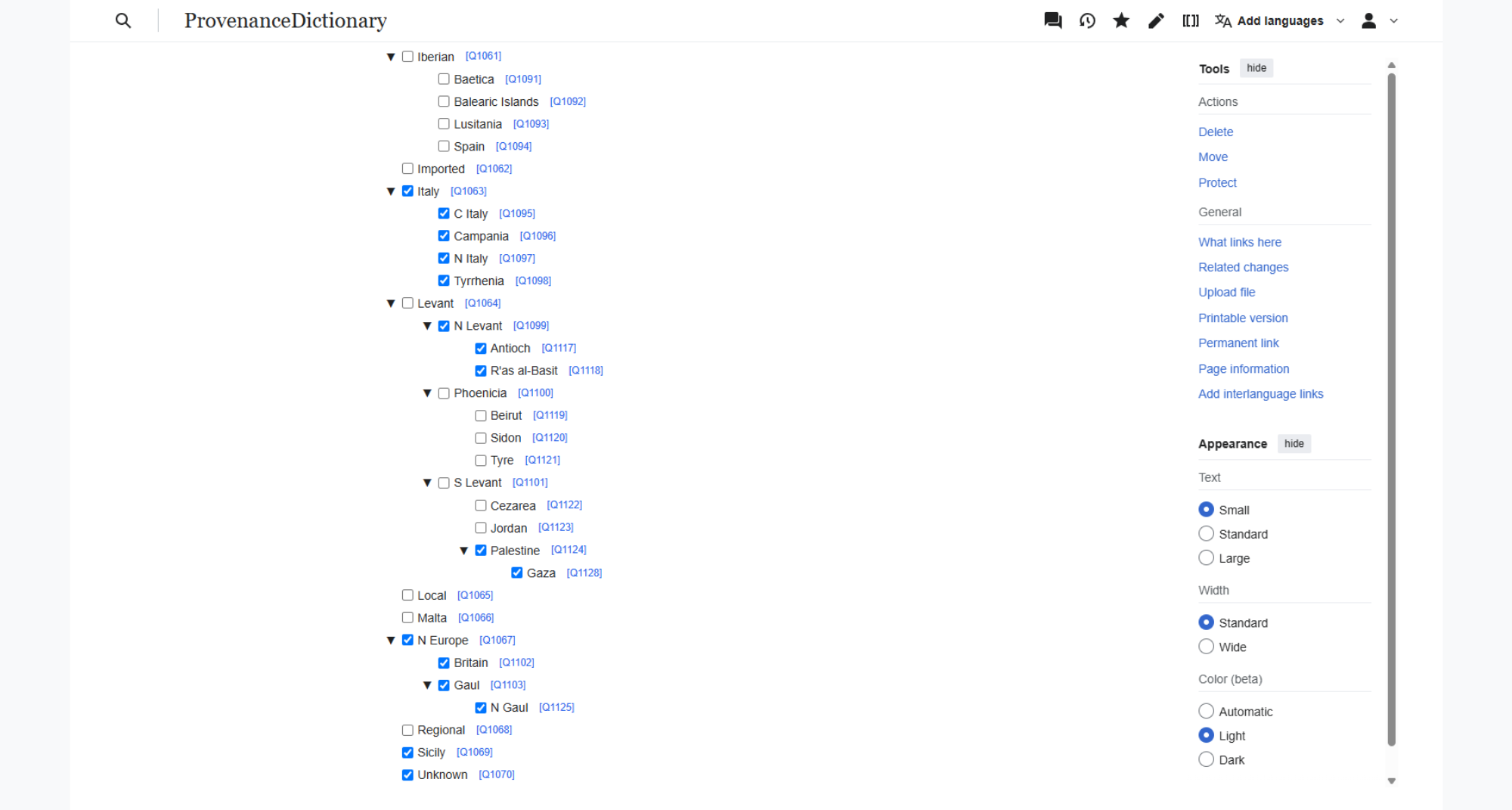
Select the checkboxes next to them.
Note
To select all values, check the parent item.
-
Move to the top of the page and click "Download selected as Arches format".
Note
As a result, a
wikidata_export.rdffile will be downloaded. You can import it to Arches.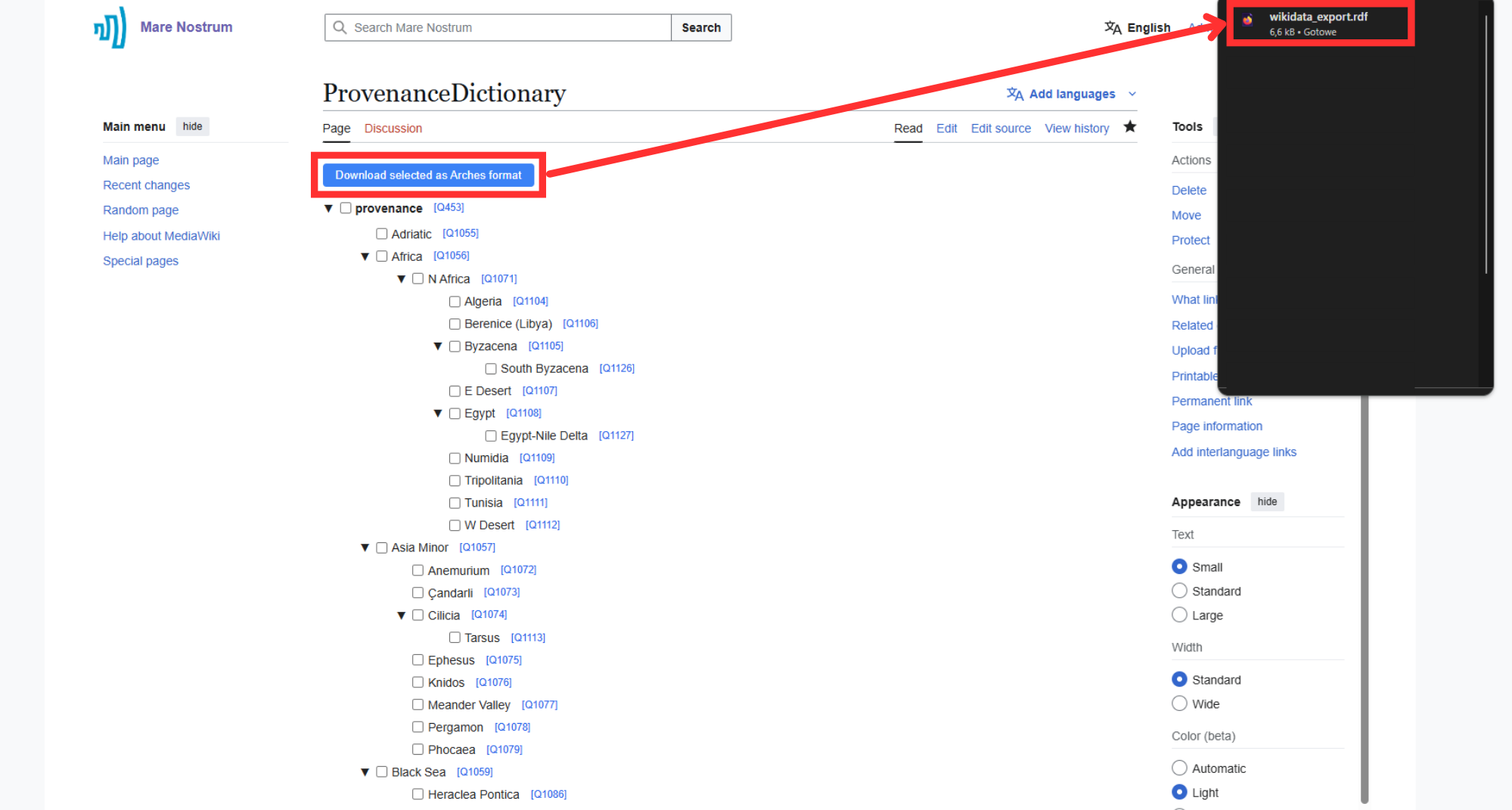
Elements of the Item page